Phil Jones Computers
01753 731763 / 07904 125648
Screen Sending Howto - Illustrated
Install
- Click here to begin
downloading the installer program of TightVNC,
- At the prompt, choose to save the file
"tightvnc-2.0.2-setup.exe". Click "Save in" and choose "Desktop". Click
Save.

On Windows Vista/7, click "Browse Folders" to change to Desktop.

In some web browsers, the file will be downloaded automatically to your
name
folder, Downloads, or your name folder, My Documents,
Downloads.
- Double-click the new file to begin the
installation. If the new file doesn't appear on Desktop, try your
name folder, Downloads, or your name, My Documents,
Downloads.
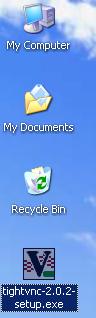
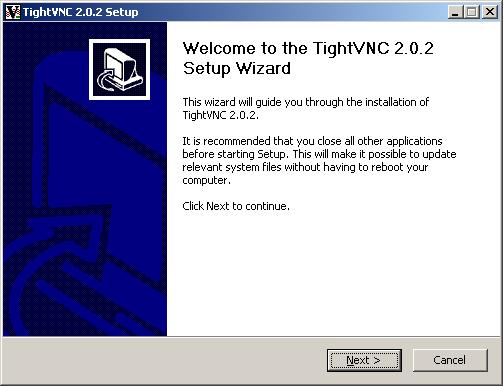
- On Windows Vista/7, you may be asked to confirm this action. Now
you should see the Welcome screen. Click Next.
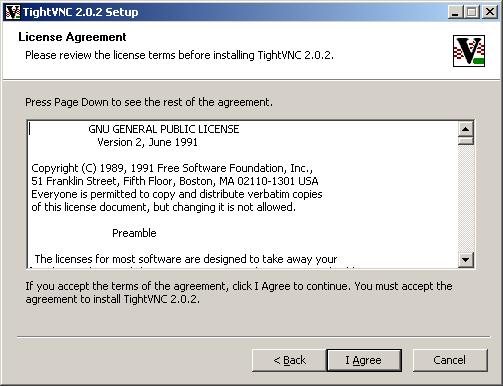
- Click "I Agree".
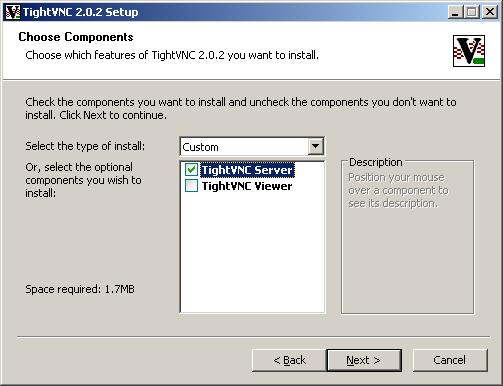
- Untick TightVNC Viewer. Leave TightVNC Server ticked. Click Next.
- Click Next.
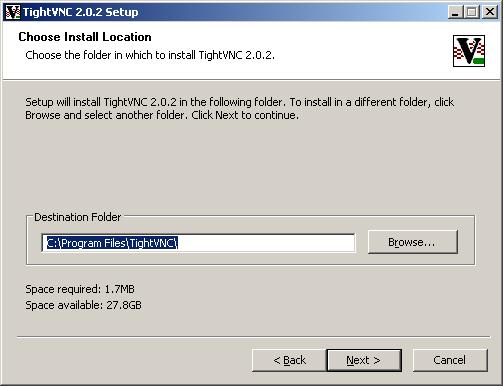
- Click Next.
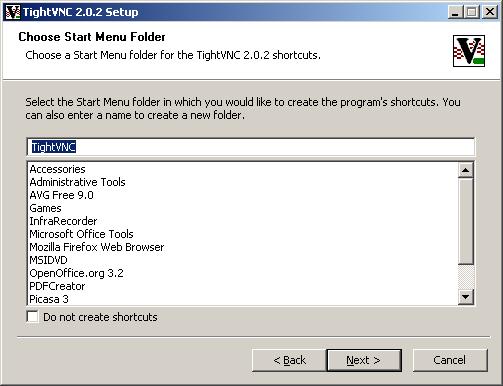
- Untick "Register TightVNC Server as a system service". Leave "Add
exception for TightVNC to Windows Firewall" ticked. Click Next.

- Click Next.
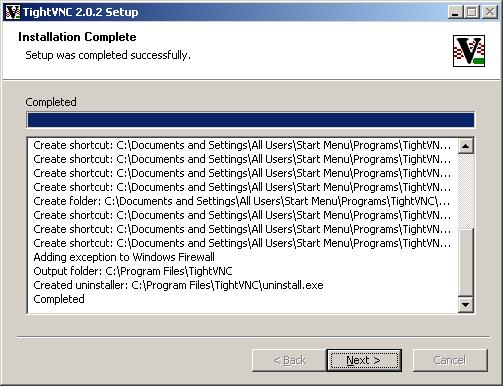
- Click Finish.

- The necessary program is now installed. You do not need to repeat
these steps.
Use
- To send your screen, click Start menu, All Programs, TightVNC,
TightVNC Server (Application Mode), Run TightVNC Server.

- The TightVNC "server running" icon should now appear in the
System Tray in the bottom right corner of the screen.
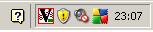
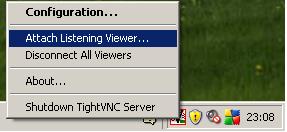
- Right-click on the TightVNC icon. Left-click "Attach Listening
Viewer..."
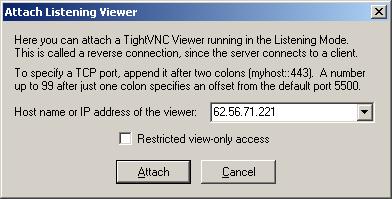
- Enter the Internetworking Protocol (IP) address of my computer.
This may vary. I will tell you what it is. The example below is just an
illustration. Click "Attach".
- The VNC Server icon should change colour and the desktop
wallpaper, if you have any, should disappear and turn into a blue
background. This means you are now sending your screen to me. I should
now be able to see what's on your screen, and my keyboard and mouse
should work on your screen. You and I may now take turns to operate
your computer. I will say "I have control" or "You have control" so
that we know whose turn it is.
- To end the session, right-click the TightVNC icon, then click
"Shutdown TightVNC Server".

- The TightVNC Server icon should now disappear and the desktop
wallpaper, if you had any, should reappear. You are now no longer
sending your screen to me. To resume, you must repeat steps 1-5
starting from "Use" above. I cannot do that, you must do it for me.